How-to Spot An Overheating Laptop/PC and Fix It 🚨🔥

High-performance gaming PCs push hardware to its limits, and with great power comes… great heat! Overheating is one of the most common issues gamers, professionals, and PC enthusiasts face—and if left unchecked, it will throttle performance or even damage components. Here’s how to recognize the warning signs, understand the causes, and apply easy fixes to keep your rig running cool. Before you buy anything from this website or any other to address overheating devices read on this rundown of common and not so common causes and potential fixes!
Overheating in a PC (desktop or laptop) can happen when the internal parts like the CPU or GPU create more heat than the cooling system can dissipate. Safe CPU/GPU temps are usually under 80-85°C while doing normal tasks like e-mail, web usage, office applications, etc. Temperatures over 90-100°C start to run the risk of throttling or damage to the device. Most hardware can be monitored with tools like OpenHardwareMonitor, or device specific tools like MSI Afterburner/ASUS Armory.
If your PC/laptop is having problems overheating it can exhibit multiple symptoms or maybe only one. Let’s take a look at some of the most common symptoms including unusually hot devices, system slowdowns, graphical glitches, constantly loud and spinning fans, slowdowns, Blue Screens of Death (BSOD) and system crashes. Read on to learn more!

🌡️ Possible symptoms your system might show if it’s overheating can include any one (or multiple) of the following:
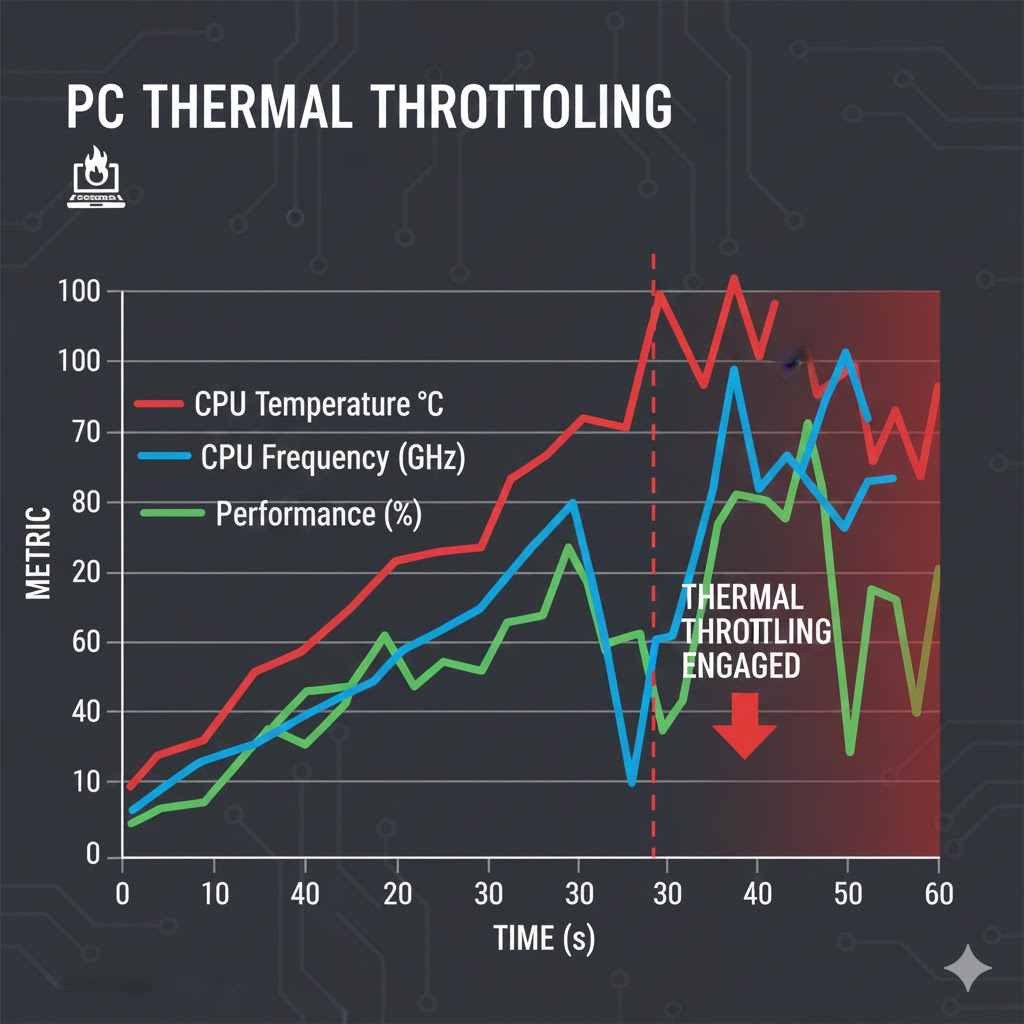
- One of the first things most people notice is sudden performance drops or stuttering during heavy multi-tasking, or gaming. If your computer starts to slow down significantly during demanding work-loads the temperatures could be increasing into the 90 degree range. At this point most devices, desktops, and laptops will start to automatically throttle down performance in order to prevent damage to the internal components.
- Loud or constantly spinning fans can indicate an overheating computer as well. It can also be caused by faulty system software especially after or during certain updates. Most devices that use air cooling run fans in a “low-power” state until the device either receives enough work-load to trigger them or if the device starts to build up too much heat. While loud and spinning fans can be indicative of an overheating computer, usually they’re software controlled and only make noise when necessary. Combine temp-monitoring software to confirm.
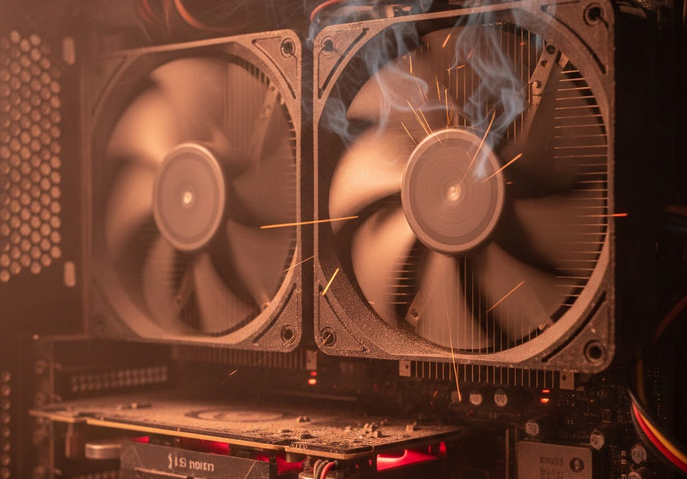
- Unexpected shutdowns or restarts. Sometimes if a PC/laptop get too hot the device will shut itself down in order to prevent catastrophic damage. If you’re using your computer and it shuts down unexpectedly try to restart it again and see if it will boot. If not then wait 15-20 min and try again. Either way once it starts you should look at system temps (especially CPU and GPU) with the built in BIOS/UEFI (accessed typically by pressing F2 or DEL during system boot-up). Check to make sure they’re not excessively high and if not then proceed to start the device normally. Monitor temperatures while “re-creating” what caused the shutdown/restart. It may be a software glitch like a buffer overrun or it could be a thermal problem.
- Thermal throttling (CPU/GPU speeds drop to reduce heat). Modern devices will slow down their speeds (or clocks) in order to prevent excessive heat generation if the cooling system isn’t adequate. If you notice your PC slowing down while you’re doing heavy multi tasking like audio/video editing, multi-tasking, or gaming then you should check your devices temperatures. I like OpenHardwareMonitor because it’s light-weight, but even Windows allows you to see the temperatures of some supported hardware.
- Hot case surfaces or warm air blasting out. The easiest step in finding out if your computer problems might be thermal related is by just touching the outside of the device. If it’s unusually warm or even hot then you’re having overheating problems for sure! Most cell phones will go into a suspended state in an attempt to cool themselves much like PC’s and laptops shut down in order to prevent thermal damage. Read on to see how to deal with it cheaply or even for free!

- System crashes or blue screens during intense gaming sessions, multi-tasking, or heavy apps like 3D animation software. This ties into unexpected shutdowns or restarts but since it often happens while the computer is under a load it can start to seem random if heat builds gradually. Overheating isn’t the only cause as mentioned before but it’s a frequent one that’s worth checking first before troubleshooting power supplies, faulty drivers, RAM problems, etc.
These aren’t all of the symptoms of an overheating system but ignoring them can absolutely shorten the lifespan of your components, lead to data-loss, or even expensive repairs so it’s best to act early.
🔍 Typical Reasons PCs & Laptops Overheat
Multiple factors can contribute to overheating not just in gaming setups but any device that has a heavy workload on its system. Let’s go through six scenarios below as to why a system might be overheating in no particular order because one or multiple can all be equally relevant or valid.
- Dust buildup blocking airflow inside the case is not only common, it’s inevitable. In either desktop PCs or laptops it’s bound to happen. Fans actively pull air in to cool components and that air carries with it household dust (think skin cells, fibers, pet dander, pollen, all of it)! Over time dust will settle on the heatsinks, vents, fans, etc inside your device. Experts and manufacturers describe it as the most frequent maintenance issue for computers, often leading to overheating if ignored.
- Poor airflow design or too few case fans restricts cool air intake, or hot air exhaust. It’s a common issue in pre-built systems, older cases, or improper setups. For example heavy dust from negative pressure, or blocked vents can be a sign of poor airflow. For laptops poor airflow often comes from usage habits rather than design alone. Laptops used on soft surfaces like beds or carpets block the bottom vents when severely restricts airflow.
- Poorly applied thermal paste won’t fill the microscopic gaps and imperfections between the CPU/GPU and it’s heatsink. Air alone is a poor conductor of heat so without proper thermal paste application, heat builds up in “hot spots” on the chip, causing higher overall temperatures. Too little thermal paste leaves air pockets or uncovered areas which cause these “hot spots”. Excess paste can overflow onto the motherboard or even act as an insulator if it squeezes out unevenly. Over time (2-5 years) paste will dry out, crack, and lose its effectiveness and should be changed if the device is older. Use a pea-sized amount in the center of the chip when applying thermal paste and for larger chips evenly spread it with a credit card. Clean off old paste with isopropyl alcohol before applying new paste and wipe off any excess.
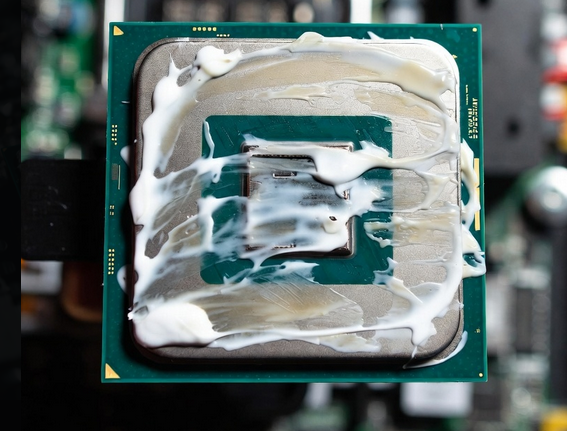
- Overclocking without adequate cooling can cause the system to automatically throttle or “downclock” to reduce heat, eliminating overclock gains and causing performance instability. This is because oven modest overclocks (10-20% higher clock) can increase heat by 30%-50% or more, especially with voltage bumps for stability. When you overclock your system make sure to use high-end air coolers or AIO liquid coolers for serious overclocks. Monitor temps/stability with tools like Prime95 or Cinebench and stress-test thoroughly.
- High ambient room temperatures can be more common than you might think. Simply put your PC/laptop relies on ambient air to keep it cool and running smooth. If the air being sucked into the system is already hot, the cooling system’s efficiency drops off a cliff. Even if your fans are spinning at maximum RPM they cannot cool the system to a temperature lower than the air they’re pulling in. Liquid cooled PC’s aren’t immune to this either as the radiator fans job is to dissipate the heat being cycled front he CPU/GPU. Once that liquid hits the radiator the job of the fans blowing air through the metal fins is to dissipate the heat, which can’t be done when ambient temperatures are too high. Laptops shouldn’t be used on beds, or laps actually but on a surface that provides ample air-flow to the vents.
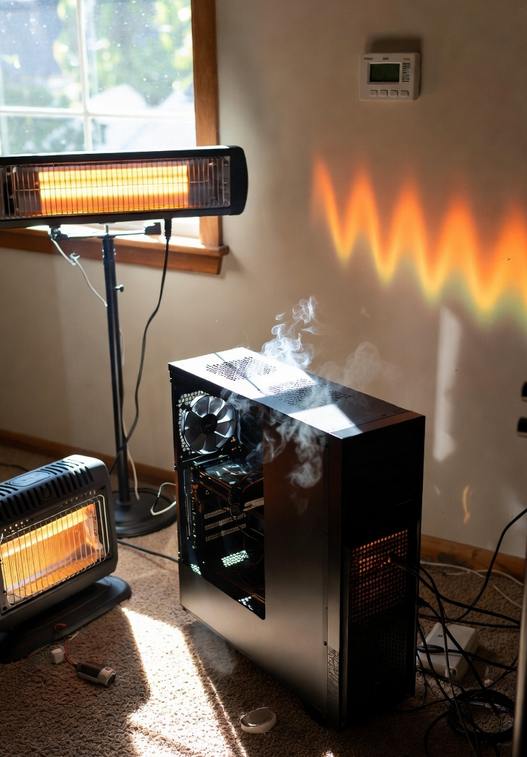
- Aging or low-quality CPU/GPU coolers that have been exposed to prolonged high temperatures accelerate degradation, creating a cycle where the cooler performs worse over time. Bearings in cooling fans wear out over time despite some being rated for 50,000 hrs (17 years at 8 hours a day). In real-life-use lubrication dries out and/or dust causes premature failure of the bearing. Combined with dust buildup, and dried-out thermal paste, aging systems can begin to show signs of “heat exhaustion.”
Even a powerful PC can overheat if cooling isn’t properly managed. Proper maintenance and quality hardware can prevent most overheating issues. If you’re seeing symptoms now, start with cleaning and temp checks!
🛠️ Easy Fixes to Cool Things Down
The good news? Many overheating issues are easy and inexpensive to fix.
✅ Clean Your PC – simple and effective.
- Use “canned air” designed for use for electronics. Shop air compressors have oil and moisture that can damage components. Use in short bursts (to prevent frost) to remove dust from fans, filters, and heat sinks. Don’t forget to blow out the power supply as well. For laptops, blow into vents from the exhaust side to push dust out.
- Aim to clean your system every 3–6 months (more in dusty environments) depending on how many fans you have and what kind of dust filters your case uses. Rechargeable electric air dusters are great for frequent use.
✅ Improve Airflow
- Ensure cool air moves through the case in one direction and hot air is exhausted through the back or top. The goal here is positive or at least balanced pressure (slightly more intake than exhaust to minimize dust buildup) with a clear front-to-back/top-flow path.
- Add or upgrade older fans with good CFM ratings to help improve flow. Common setups use 3 fans (2 for intake and 1 for exhaust).
- Avoid blocking vents and give your PC space to “breathe”. Don’t keep your device on the carpet! Ensure any dust filters aren’t clogged and clean them as necessary. Sometimes a better CPU cooler can help improve airflow as well.
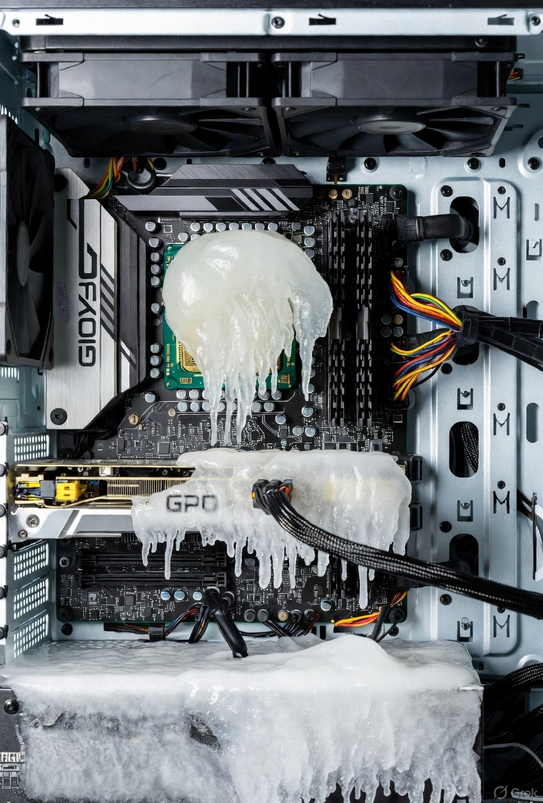
- Use zip ties and practice proper cable management. Oftentimes there’s space behind the motherboard to tuck away long cables that will interfere with good airflow inside the case.
- Laptops can be a bit tricky since they have fixed internal designs so you can’t add fans or change components easily. However some external methods such as cooling pads are the top fix. Elevating the laptop or even placing it on books will elevate it enough to allow better air intake underneath improving temperatures by a few degrees.
- Power management tools in your OS can help too by reducing voltage and therefore heat. Capping FPS in games or using power-saving modes or setting max CPU state to 99% can give some breathing room but I wouldn’t rely on it for a permanent “fix”.
✅ Monitor Temperatures
- Use tools like OpenHardwareMonitor, Core Temp, or your system’s default software. Most modern computers can also display temperature readings for compatible hardware in the systems UEFI or BIOS. Motherboard manufacturers usually include a software suite like MSI Afterburner or ASUS Armory that has detailed temperature read-outs.
- Keep CPU temps generally below ~85°C and GPU temps below ~80–85°C under load. Once temps start getting into the 90°C+ range is when the machine will start to throttle itself down, or even restart / shutdown. Too much of this stress can lead to “errata” in your device’s memory causing artifacts and other anomalous behavior.
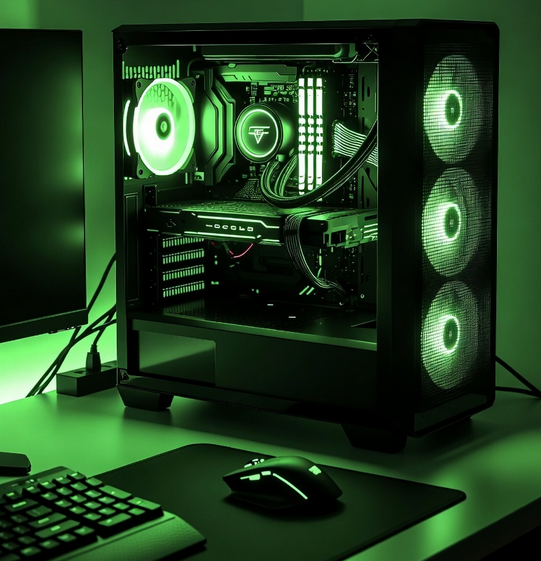
- Another trick I like to do (if your system supports RGB lighting) is to set the lighting to coincide with the temperature of the system. At low temps the lights are solid green, but transition to yellow, then orange, then finally red as temps get higher. An instant visual clue to your system temps and useful way to use the RGB lighting found in most higher-end devices and accessories. Open RGB is a light-weight and great tool for this!
✅ Replace Thermal Paste
- Reapplying fresh thermal paste can significantly lower CPU temps. Don’t take your heatsink off your CPU unless you’re comfortable doing so. Oftentimes this will drop temperatures around 5-20°C or more under load depending on age and condition. Dried paste creates air gaps that insulate heat creating “hot zones” on the CPU itself.
- Differences between the top thermal pastes are only 2-5°C, but I prefer Arctic MX-6. Other good ones are ThermalrightTFX and Honeywell PTM7950 (phase-change pads).
- A small pea-sized amount in the center of the chip is all that should be needed for most CPUs. Make sure to clean the old paste off with 90% isopropyl alcohol and lint-free cloth. Let the pressure of the heatsink spread the paste and mount the cooler evenly by tightening in a cross pattern or with it’s own clip after wiping away any excess.
- Monitor temps for a few days as the thermal paste “settles”. Temp spikes are common especially with modern chips designed to “boost” aggressively, but on average the CPU should be in the 30-45°C range at idle.
✅ Adjust Settings
- Even if your CPU/GPU is overclocked from auto-boost features, reducing clock speeds directly cuts heat generations since power scales with clock speeds and frequency. Windows use tools like Intel XTU for Intel CPUs or Ryzen Master for AMD CPUs to lower clocks or cap boost limits. Use the system BIOS to reduce CPU ratio/multiplier or to disable turbo/boost. BIOS adjustments are safer and always active but sometimes less precise than software settings.
- Enabling fan curves for more aggressive cooling based on temperature often lower peak temps by 5-10°C. In Windows use software like FanControl, SpeedFan, or manufacturer apps. In BIOS most modern motherboards have fan control sections like ASUS Q-Fan, or MSI Smart Fan where you can set custom fan curves per each individual header.
- These software-level fixes aren’t meant to be permanent fixes but rather as a guide. If by using them the system returns to normal it’s indicative of overheating issues and a more thorough approach at solving them should be used. With that said, using tools like your own BIOS or OpenHWM will make your PC thank you for keeping it lean as well.
✅ Upgrade Cooling (If Needed)
- Replace your aging case fans or even upgrade them. Upgrading to larger case fans if your computer supports it can help improve overall cooling by 2-5°C under load but the even better gains come from reduced noise. The gains from higher airflow (CFM) at lower RPMs mean the blades move air more efficiently without spinning as fast and making so much noise for this win-win situation.
- Most pre-built computers only have a single intake and exhaust fan, some only have just exhaust. Adding a single fan to these can make a world of difference during demanding workloads. Remember that even though most fans are rated for around 50k hours (roughly 15 years at 8 hours a day) in the real world things like dust, heat, moisture, and on/off cycles will wear the bearing and bearing lubricant down.
- Upgrade your existing CPU cooler to one with multiple heat pipes, and dense fins that maximize the surface area for heat dissipation. Dual tower heatsinks out-perform single towers by 5-15°C on high-TDP CPUs.
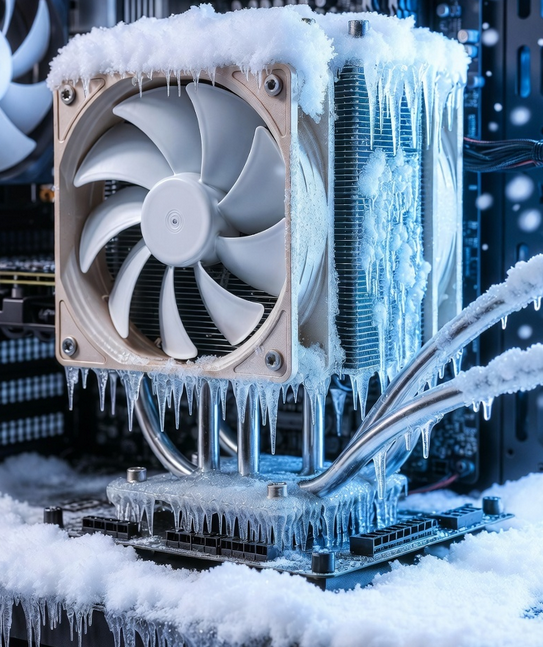
❄️ Stay Cool, Work & Play Longer!
Effective cooling enables you to crunch spreadsheets faster, edit videos smoother, and gives you just one more edge when chasing that next frag! It prevents thermal throttling leading to slowdowns and eventual shut-downs in mid-workflow. The reduced temps lead to better performance and longer life of the overall device.
Along with the suggestions in this article also remember that quality components and parts from reputable sources like Bay Sell are an invaluable part of the process. Look for brands or suppliers with 80+ gold, platinum, or titanium and full Japanese capacitors/components for the best value/performance.
Overheating doesn’t have to ruin your work day or your gaming experience. With regular maintenance, good airflow, and smart monitoring, you can keep your PC cool, quiet, and performing at its best—even during marathon gaming sessions.
Bookmark us for more helpful news, tips, tricks, etc!!!!
Game on, and stay cool! 🎮❄️
